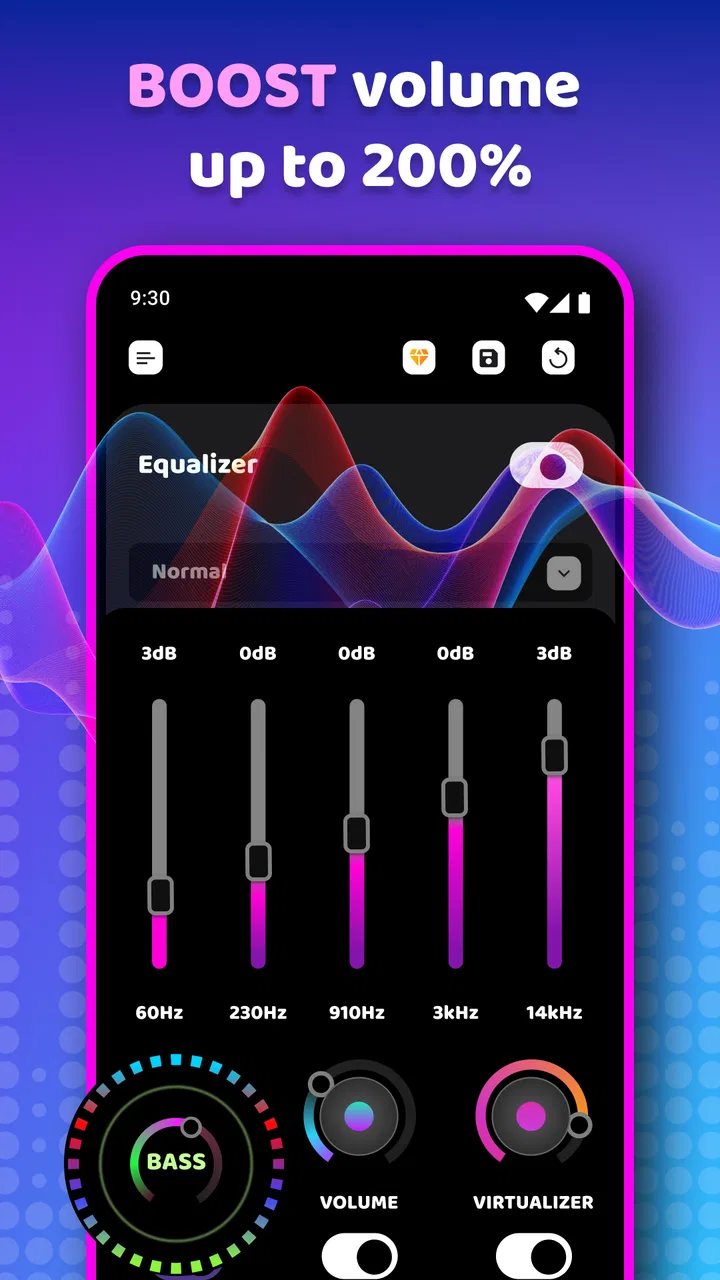
Equalizer Sound & Bass Booster
- 4.5
- Rating
- 5.00M
- Installs
- Free
- Price

 Analysis by App-foxy
I approached Equalizer Sound & Bass Booster as a practical sound-adjustment tool rather than a replacement music player. It sits in the Music & Audio category, and its purpose is straightforward: help you change the tonal balance of music and add more perceived bass when your phone’s normal audio controls feel too limited. In everyday use, that can make a noticeable difference, but the result depends heavily on the phone, headphones, speaker, and music app involved.
The app is developed by TarrySoft and is free to install, with optional in-app purchases ranging from $0.99 to $99.99 per item. It has a Everyone content rating, so its intended audience is broad. The current version is 1.1.4.1.1, and it runs on Android 5.0 or later. Its 4.5 average from around 95 thousand ratings and more than 5 million installs suggest that many people find the basic idea useful, although popularity should not be confused with identical results on every device.
Where the first useful result can get stuck
The biggest difficulty is not understanding what an equalizer does; it is getting the effect to apply consistently. I found that the app makes sense when I treated it as a layer between the audio source and the phone’s output, not as a magic switch that changes every sound automatically. If music sounds exactly the same after moving a control, the problem may be the active audio route or the way the phone handles sound processing.
You May Also Like

 Blood Strike: 2.5 Anniversary
Blood Strike’s Loadouts Turn Every Drop Into a Tactical Gamble
A close look at Blood Strike’s custom loadouts: how fast access to signature weapons reshapes its battle royale rhythm, rewards preparation, and narrows the gap between fights.

 Pandora - Music & Podcasts
Pandora’s Music Is Easy to Start, but Harder to Recover
Pandora’s strength is its low-effort path from a seed to a station. Its weak spot is how much confidence it asks you to place in connection, setup, and quiet recovery.

 8 Ball Pool
 Is Built on Rivalries, Rematches, and Routine
A close look at the rivalries, rematches, shared routines, and unanswered safety questions that turn a quick pool match into a persistent mobile community.

 Samsung Music
’s Quiet Strength Is Playing What You Already Own
Its reach comes less from spectacle than from dependable access to a personal library. That simplicity is both the app’s strongest retention engine and its ceiling.

 AccuWeather: Weather Radar
AccuWeather Review: A Quick, Clear Forecast for Everyday Decisions
For everyday plans, the best forecast is the one you can understand quickly. AccuWeather makes rain timing, radar, and local conditions easy to act on, with a few trade-offs.

 Hill Climb Racing
Why Hill Climb Racing Still Turns Crashes Into One More Run
A tiny car, a bumpy hill and one more upgrade: Hill Climb Racing keeps resurfacing because its simple chaos makes every near-miss feel personal.
More From Our News Desk



A common mistake is making several large adjustments at once. Raising every band and then adding bass may create a louder signal without creating cleaner sound. The result can be harsh vocals, muddy low frequencies, or distortion on songs that were already mastered with strong bass. I had better results by starting close to the neutral position, changing one area at a time, and listening to a familiar track at a moderate volume.
Another point of friction is expectation. A software equalizer can reshape the signal, but it cannot give small phone speakers the physical low-end response of larger speakers. If the speaker has little ability to reproduce deep bass, pushing the bass control harder may mostly produce vibration, fuzziness, or reduced clarity. With headphones, the adjustment is usually easier to hear, but the quality still depends on the headphones’ own tuning.
The most useful habit is to adjust for clarity before chasing extra bass. I would first listen to vocals, cymbals, and acoustic instruments, then make a small low-frequency change only if the track still feels thin. This avoids the familiar “louder must be better” trap and gives the app a fairer test.
Why a preset can sound good on one track and poor on another
Music is not mixed consistently enough for one setting to suit everything. A bass-heavy electronic track may become congested with the same adjustment that helps an older recording feel fuller. Spoken audio, live recordings, podcasts, and orchestral pieces also react differently. For that reason, I would not judge the app from a single song or leave an aggressive setting active all day.
There is also a listening-environment issue. A setting that works on a quiet evening may sound excessive on a bus, where outside noise encourages higher volume. In that situation, more bass can make the sound feel powerful at first but tiring after a while. I prefer using a modest profile for general listening and making temporary changes only when a particular album or pair of headphones needs them.
Setup checks that prevent unnecessary troubleshooting
Before deciding that the app is ineffective, I would check the complete audio path. Start the music, confirm that the intended headphones or speaker are actually connected, and make sure the phone is not silently using its own speaker. Bluetooth devices can have their own sound processing, and some headphones include a separate application or built-in tuning. When two systems alter the signal at the same time, the result may be weaker, exaggerated, or simply difficult to predict.
I also recommend testing with one familiar music app and one familiar song first. Switching between several players while testing makes it hard to identify what changed. Keep the phone’s existing sound enhancements in mind as well. If a system-level bass setting, manufacturer audio mode, or another equalizer is already active, disable or reduce it temporarily during the first test. The goal is not to remove useful features permanently, but to avoid stacking unknown adjustments while learning how this app behaves.
Volume is another important check. If the sound is already near its maximum, distortion may be caused by the output stage or the speaker rather than by the equalizer itself. Lowering the volume slightly after increasing bass can reveal whether the problem is clipping or simply a weak speaker. I found that a quieter, cleaner signal was often more pleasant than a heavily boosted one at maximum volume.
When testing, use a short sequence rather than random tapping. Play a section with vocals, return the controls near neutral, make one small change, and compare at roughly the same listening level. Human hearing tends to prefer the louder option, even when it is less balanced, so matching volume makes the comparison more honest.
A sensible first adjustment
For a first session, I would leave the controls near their starting position and make a small bass change only if the headphones sound noticeably light. Then I would listen to a vocal-led track and check whether the voice remains easy to follow. If it becomes cloudy, reduce the bass before changing anything else. This simple sequence is more reliable than immediately selecting an extreme “powerful” sound.
For phone speakers, I would be especially conservative. The speaker’s physical limits are easy to expose, and an equalizer cannot overcome them. For headphones, the best setting may be less about adding bass and more about correcting a tonal imbalance that makes the middle of the music feel recessed or overly bright. The app is most useful when it helps compensate gently, not when it is pushed as a loudness button.
Users often ask whether they need to change settings for every song. In my experience, no, but a single universal profile is rarely ideal either. A mild everyday setting can stay active for casual listening, while more specialized changes are better reserved for a particular pair of headphones or a difficult recording. If you frequently switch between earbuds, a car system, and a phone speaker, expect to revisit the adjustment because each output device has its own character.
Recovering when the sound suddenly changes
If the effect disappears, I would first return to the app and check whether the controls still show the intended position. Then I would stop and restart the music rather than immediately changing every setting. Audio sessions can be interrupted when headphones connect, disconnect, or move between devices. Re-establishing the intended output route is often more useful than increasing the controls further.
If the sound becomes distorted after an adjustment, move back toward neutral and lower the listening volume. Do not try to fix distortion by adding more processing. A heavily boosted signal can exceed what the phone or headphones handle cleanly, and further changes only hide the original cause. Testing the same song without the app’s adjustment can help separate a tuning problem from an output problem.
When a change works in one player but not another, I would avoid assuming that the app is broken. Different music applications may handle audio processing differently, and some may apply their own effects. The practical recovery step is to use one player as a reference, compare the same output device, and change only one variable at a time. This will not guarantee identical behavior across every application, but it produces a much clearer diagnosis.
A useful recovery technique is to keep a personal “known good” position in mind rather than experimenting indefinitely. If a setting sounds comfortable on a familiar recording, return to it before trying another adjustment. This matters because repeated boosts can make the listener adapt to an increasingly colored sound, making it difficult to remember what neutral sounded like.
When a reset is better than more fine-tuning
There are moments when starting over is faster. If the audio has become boomy, piercing, or noticeably quieter after several changes, return the controls near their original state and test again. I would also do this after changing headphones or moving from Bluetooth to the phone speaker. A setting created for one device can be misleading on another, and carrying it forward may create the impression that the app is malfunctioning.
The same principle applies after using a strong bass adjustment for a particular song. Temporary tuning is easy to forget, especially when the app remains open in the background of normal listening. Before judging a new album, check whether an old setting is still active. This small check prevents many false conclusions about the recording or the app.
When the app is not the cause
Sound complaints often begin with the equalizer because it is the most visible recent change, but the source can be elsewhere. A damaged cable, a loose connector, blocked speaker opening, weak Bluetooth connection, or poorly sealed earbud can all make music sound thin or uneven. If one side is quieter, I would inspect the physical connection and test another output device before adjusting the sound profile.
Music files themselves can also vary widely. A low-quality recording, an unusually quiet master, or a track with intentionally restrained bass may not respond in the same way as a well-produced studio file. Increasing bass does not restore information that was never captured clearly. It may only emphasize noise or make the rest of the mix harder to hear.
Battery-saving behavior and device-specific audio handling can also affect the experience. If the effect vanishes after the phone has been idle, after an output change, or after another audio application takes control, I would test the app again immediately after opening it and compare the result. The important point is to observe the pattern instead of repeatedly changing the equalizer. General checks such as reopening the player, reconnecting the output device, and returning to a moderate setting are safer than aggressive system changes.
People who need exact, repeatable audio production should be cautious about relying on a simple bass booster. For mixing, mastering, hearing tests, or professional monitoring, a dedicated audio environment with predictable routing is a better choice. This app is aimed at personal listening, where a pleasing adjustment matters more than laboratory consistency.
It may also be the wrong option for someone who wants a complete music library, streaming service, offline collection manager, or detailed player controls. Equalizer Sound & Bass Booster focuses on sound shaping. A full music player may be a better fit if organizing and playing a collection is the main goal. Likewise, a headphone manufacturer’s own application can be preferable when it offers device-specific tuning that this general-purpose tool cannot match.
How it compares with ordinary phone controls and alternatives
Compared with the basic sound options built into many phones, this app is appealing because it puts the adjustment closer to the listening experience. That is useful when the system controls are hidden, limited, or too broad. The trade-off is that another processing layer can introduce uncertainty, especially when the phone already includes audio enhancements.
Compared with a dedicated player that includes its own equalizer, this app can be more convenient for users who listen across different players, but consistency may depend on how each player handles audio. A player-integrated equalizer can be more predictable within that one application. On the other hand, it will not necessarily help with audio played elsewhere. The better choice depends on whether flexibility across listening sources or control inside one player matters more to you.
Compared with a manufacturer-specific audio tool, TarrySoft’s app has the advantage of being a general solution rather than being tied to one headphone brand. The compromise is that it cannot be assumed to understand the exact hardware profile of every speaker or headset. If your headphones already have a carefully designed companion app, I would compare both approaches and keep only the one that produces a cleaner, easier-to-manage result.
The free entry point makes experimentation accessible, while the optional purchases mean that users should pay attention before choosing anything that costs money. I would begin with the free experience and decide whether the adjustment genuinely improves daily listening. Paying for more control only makes sense if the basic workflow already fits your habits.
Who will benefit from it most
I think this app is best for someone who regularly feels that their phone audio is too thin, too bright, or lacking impact and wants a quick personal adjustment. It is also useful for listeners who move between different headphones and want to compensate for a noticeable tonal difference without replacing their music application.
A realistic everyday example would be commuting with compact earbuds that make spoken vocals clear but leave music feeling light. I would start with a modest bass change, test it on both a vocal track and a bass-heavy track, and keep the setting only if the voice remains clean. Later, when switching to the phone speaker for a quick kitchen playlist, I would return closer to neutral rather than assuming the same profile would work.
The app is less suitable for someone who wants automatic, device-perfect calibration, professional audio control, or a complete streaming and library experience. It is also not the answer to a failing speaker or poor-quality recording. Those problems need a different solution, and pushing the equalizer harder can make them more obvious.
Because the app is rated for Everyone and supports Android 5.0 or later, it is approachable for a wide range of Android users. Still, “easy to install” does not mean “identical on every phone.” The practical quality comes from careful testing, moderate changes, and understanding which device is actually producing the sound.
My practical verdict after using it
Equalizer Sound & Bass Booster is a useful, focused tool when you want more control over the character of music without replacing your usual listening habits. I like it most as a correction tool: a way to make a particular pair of headphones feel more balanced or to add a little weight to a thin-sounding setup. I like it less when it is treated as a shortcut to unlimited volume or deep bass from hardware that cannot reproduce it.
The strongest workflow is simple: test one output device, begin near neutral, change one area at a time, compare at a similar volume, and reset when the device changes. Those steps matter more than dramatic settings. They also make it easier to tell whether the app is helping or whether the real issue is the player, connection, recording, or speaker.
With a 4.5 average and around 3 thousand written reviews, it has clearly attracted substantial user feedback, and its free availability makes trying it low-risk. My recommendation is positive for casual listeners who want hands-on tonal adjustment, especially those frustrated by limited phone controls. I would skip it if you need professional consistency or a full music-player replacement.
In short, this is a practical Android audio utility rather than a miracle enhancer. Used gently, it can make everyday listening more comfortable and better matched to your headphones. Used aggressively, it can expose the limits of the rest of the audio chain. That distinction is the key to getting worthwhile results from it.
FAQs for Equalizer Sound & Bass Booster
01What is Equalizer Sound & Bass Booster used for?
Equalizer Sound & Bass Booster is designed to improve the audio experience on a mobile device. It lets you adjust sound frequencies, increase or reduce bass, and apply preset effects for music, videos, podcasts, games, or headphones. The app is especially useful when your phone’s built-in audio controls are too limited, although the final result can vary depending on the device, headphones, and media player.
02Does Equalizer Sound & Bass Booster work with all music and video apps?
Compatibility can depend on the Android version, device manufacturer, audio output, and the application playing the content. In testing, equalizer controls generally work best with common music players and wired or Bluetooth headphones, while some streaming apps or protected audio services may restrict system-wide processing. If an effect does not apply immediately, reopening the media app or enabling the booster again may help.
03Can Equalizer Sound & Bass Booster damage my phone or headphones?
The application itself should not physically damage your phone when used normally, but extreme volume or bass settings may cause distortion and can potentially stress small speakers or headphones. It is safer to increase levels gradually, avoid keeping the volume at maximum, and lower the boost if you hear crackling. Listening at excessive volume for long periods can also harm your hearing, regardless of the app.
04Is Equalizer Sound & Bass Booster free to download and use?
The app can generally be downloaded without an upfront charge, but the available features may depend on the version installed. Free editions commonly include advertising, limited presets, or optional premium upgrades for additional controls and a cleaner experience. Before downloading, check the current Google Play or App Store listing for subscription details, in-app purchases, supported devices, and any limitations that may apply in your region.
05Does the app require special permissions or an internet connection?
Equalizer Sound & Bass Booster may request permissions related to audio control, notifications, or displaying controls over other apps, depending on the operating system and the features you enable. These permissions help the booster remain active while media is playing, but you should review them before accepting. Basic equalizer functions may work offline, while advertisements, analytics, updates, or premium verification can require internet access.
Pros
- Boosts bass and volume with simple
- accessible controls.
- Preset equalizer modes make quick audio adjustments easy.
- Works with many music and video players on Android.
- Compact interface is easy to navigate while listening.
- Useful for improving sound on basic phone speakers and headphones.
Cons
- Some features may depend on the device and Android audio system.
- Strong bass boosts can cause distortion at higher volume levels.
- Ads may interrupt the experience in the free version.
- Audio effects can drain battery during extended listening sessions.
- Results may vary significantly between different headphones and speakers.

Equalizer Sound & Bass Booster
Gallery